


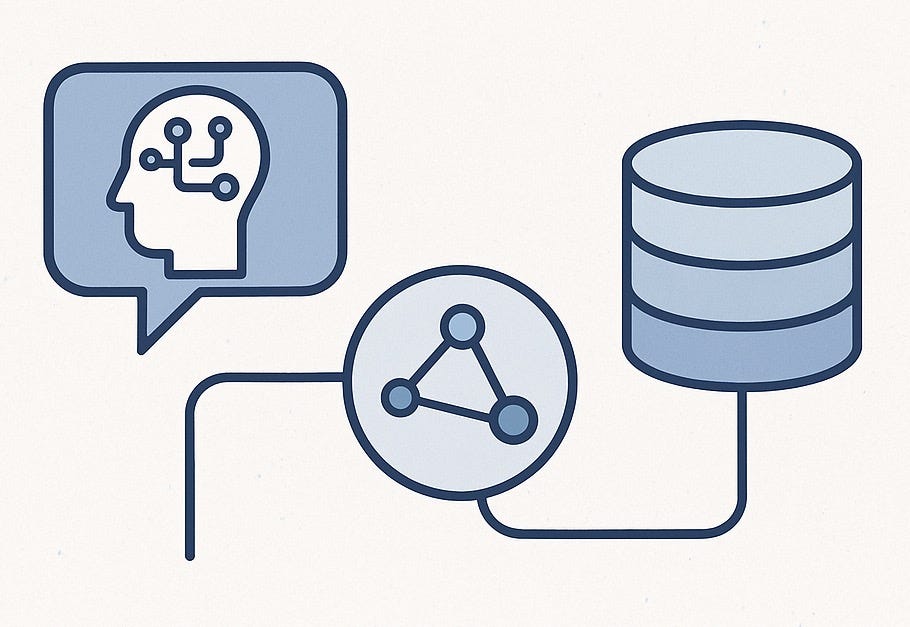
I’ve been reading the ideas behind Model Context Protocol (MCP) lately—reading docs, skimming blog posts, the usual. Also, wrote a few blog posts on MCP. But eventually I thought, okay, time to stop reading and actually try the thing.
So, I wanted to try out a real MCP setup, end to end. That meant finding an MCP server I could use, and a client where I could call the tools, trigger the functions, play with the exposed resources.
I picked MongoDB for this exploration—not because I’m endorsing it as a product to use, but simply because it has recently rolled out support for MCP. It was freely available, and that’s what I needed today.
After a bit of searching, I also found that MongoDB is already supported inside Windsurf, an IDE built on top of VS Code with a built-in GitHub Copilot-style AI coding agent, called Cascade.
This post is for anyone who's MCP-curious but hasn't actually tried it yet. I’ll walk through what I set up, what happened, and why it’s worth your time—even if you’re just MCP-window-shopping right now.
Wait, What’s MCP Again?
MCP (Model Context Protocol) is basically a standardized way for tools and systems to expose their capabilities in a language AI agents can understand.
Imagine you’re building an AI assistant, and you want it to talk to a database, a CRM, a payment processor, maybe even your internal APIs. Without MCP, you’d have to write a custom integration for each one. With MCP, the tools can tell the agent:
“Here’s what I can do, here’s what I need from you, and here’s what I’ll give you back.”
No hardcoding. No vendor API calling. Just clean interoperability between smart agents and powerful tools and resources.
Setting It Up: My Quick and Dirty Test Drive (Now with Step-by-Step Details)
Here’s what I did to get my MCP test environment up and running. If you want to follow along, here’s how to do it.
1. Sign Up for a MongoDB Cloud Account
a. Go to https://cloud.mongodb.com
b. Sign up a free account your GitHub/Google login.
Check out the following video where I walk through how I created a free MongoDB Atlas account and retrieved the connection string, which you’ll need in a later step for connecting to the MongoDB MCP server from the Windsurf IDE.
2. Install Windsurf IDE
a. Visit https://windsurf.ai
b. Click "Download" and install the IDE for your OS
c. Launch Windsurf and create a free account when prompted
d. Open a new workspace or project (this can be a local folder), but if you just want to use MongoDB MCP server via Windsurf, you don’t need to open a local folder.
3. Add MongoDB as an MCP Server in Windsurf
a. In Windsurf, click the Settings from the Windsurf menu.
b. In the search box in the settings, type “MCP Servers”
c. Click “Add MCP Server”
d. From the list of list of MCP Servers option, choose MongoDB
e. Paste your MongoDB connection string into the field
f. Click "Save" or "Connect"—Windsurf will confirm if the connection is successful
Once connected, Windsurf will automatically detect and list the MCP-compatible tools exposed by MongoDB.
Watch the following video to see all the steps of adding MongoDB MCP server to Windsurf:
4. Explore the Available Tools
a. Open the MCP tools panel (usually in the sidebar or accessible via command palette)
b. You’ll see a list of operations exposed by the MongoDB MCP server—things like:
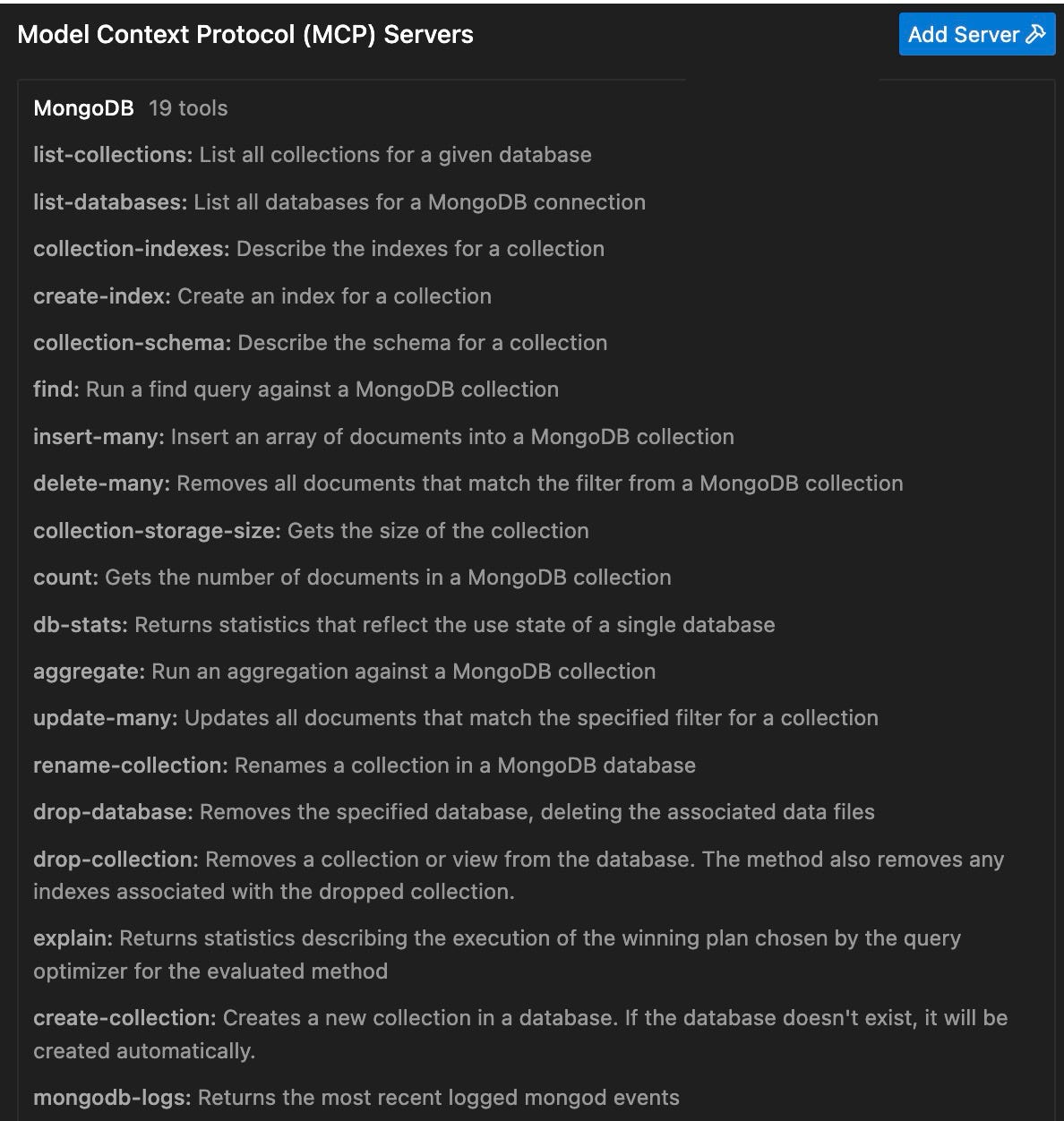
5. Talk to the AI Agent and Run Commands on the MCP Server
a. Open the AI coding agent panel, Cascade. This would usually show up by default on the right side of the IDE:
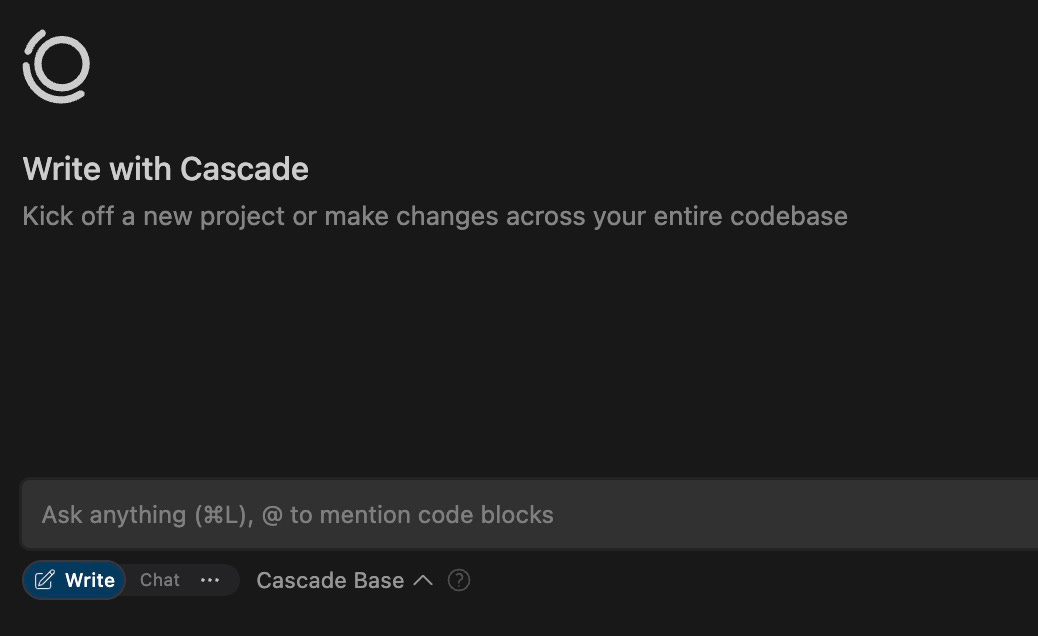
b. Try typing a natural language instruction, like:
“Create a new collection”
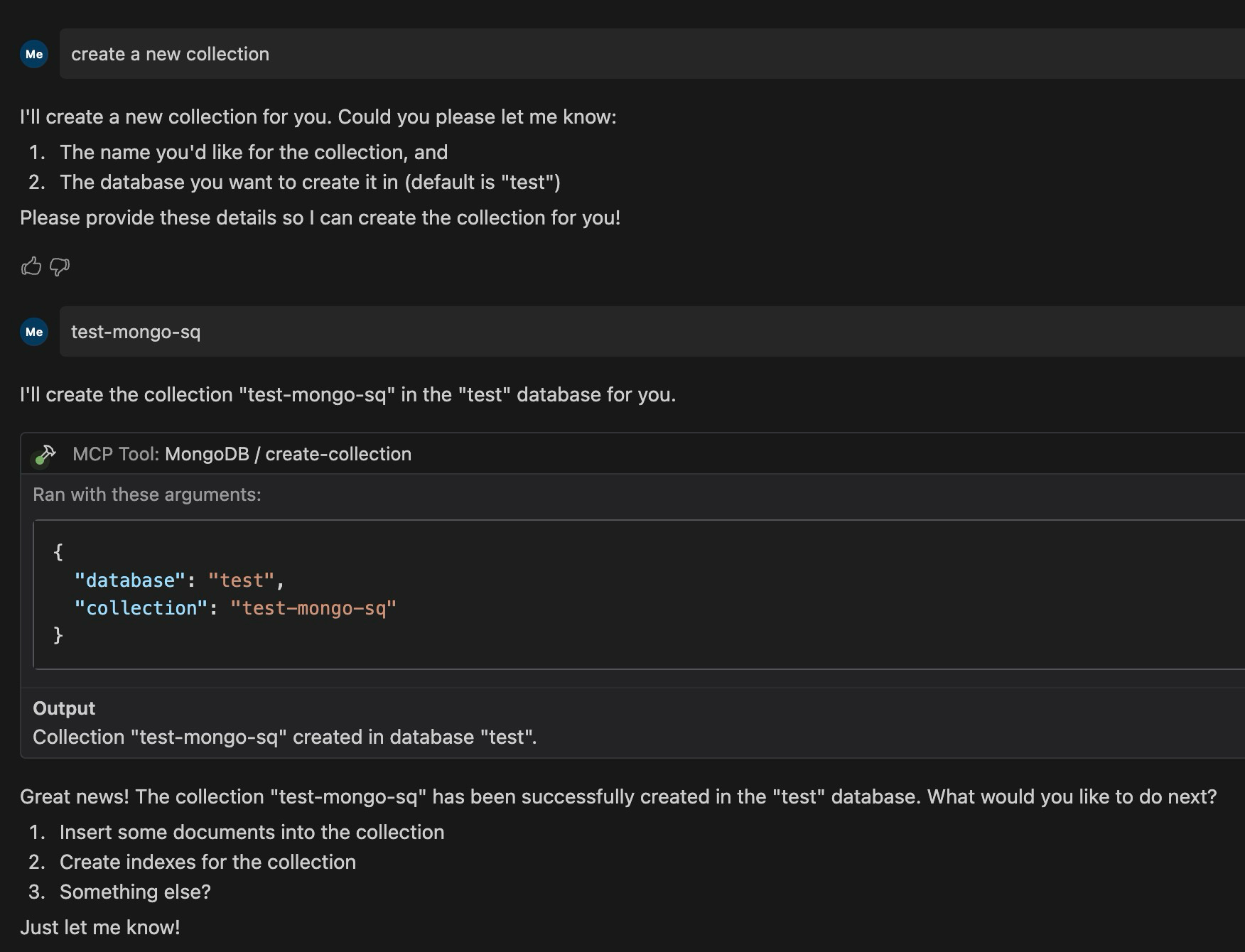
Next, you can ask the agent to insert a new document:
“insert a sample doc”
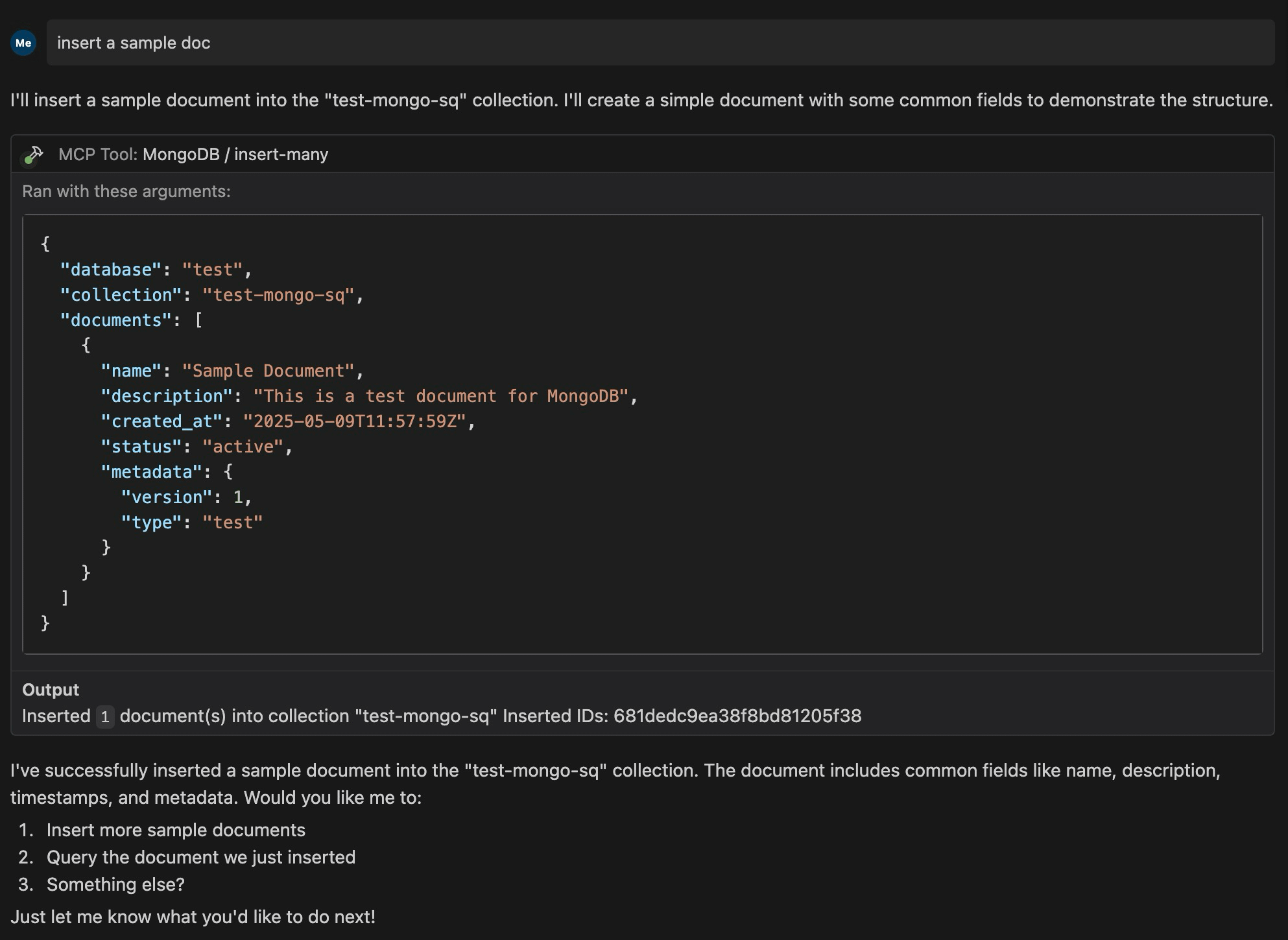
Here’s a short video showing a few more of my interactions with Cascade, where I use natural language to work with the MongoDB MCP server.
What’s Happening Behind the Curtain?
Here's a simplified diagram illustrating the flow of data and interactions between the components:
+----------------+           +----------------+           +----------------+
|                |           |                |           |                |
|  Windsurf IDE  | <-------> |  MCP Protocol  | <-------> |  MongoDB Cloud |
|                |           |                |           |                |
+----------------+           +----------------+           +----------------+
        |                            |                            |
        |                            |                            |
        v                            v                            v
[AI Coding Agent]         [Standardized Tool Calls]       [Database Operations]
MongoDB has implemented an MCP server that exposes a set of annotated functions—create a collection, insert a document, find a record, update fields, and so on. These are registered in a standard format that any MCP-aware client can understand.
Windsurf acts as that client. When I connected to MongoDB through it, Windsurf used my credentials and its built-in MCP client to talk to the MongoDB server. From there, the Cascade AI agent inside Windsurf could start issuing tool calls, based on the functions MongoDB made available.
The most impressive part? The agent didn’t need to know how MongoDB works. It didn’t need to know the schema, the API, or the table names. It just made requests through a standardized protocol, and MCP server handled the rest.
No glue code. No SDKs. No custom integrations. Just results.
Why This Matters
With MCP, you don’t have to build a custom bridge between your AI agent and every tool you want to use. As long as the tools expose themselves via MCP, the agent can just plug in and go.
It’s like the difference between having to build your own USB drivers and just… plugging in a mouse.
This also means agents aren’t locked into a single vendor. If another database provider exposes MCP-compatible tools, you can swap MongoDB out, and your AI assistant won’t even flinch. It’ll just keep talking MCP like nothing happened.
Final Thoughts
This whole experience reminded me how much friction we just accept when connecting tools and services. MCP feels like the first serious effort to remove that friction—by giving AI agents a common language to talk to tools, no translation layer required.
It’s early days, but if you're experimenting with AI agents or tool integration, MCP is worth your attention. And now, thanks to tools like Windsurf and MongoDB’s MCP server, it’s actually something you can use—not just read about.
If you're considering how to expose your own tools via MCP or integrate it into your architecture, that’s where I’m headed next. I’ll be sharing those details as I go.